Locking a RunCloud origin to Cloudflare: the DigitalOcean and Hetzner playbooks
Putting a site behind Cloudflare hides your origin from casual traffic — not from anyone who already has the IP. The firewall configuration I run on RunCloud origins across DigitalOcean and Hetzner, and the order of operations that keeps you from locking yourself out.
Nischal Tiwari
Website manager · Digital producer
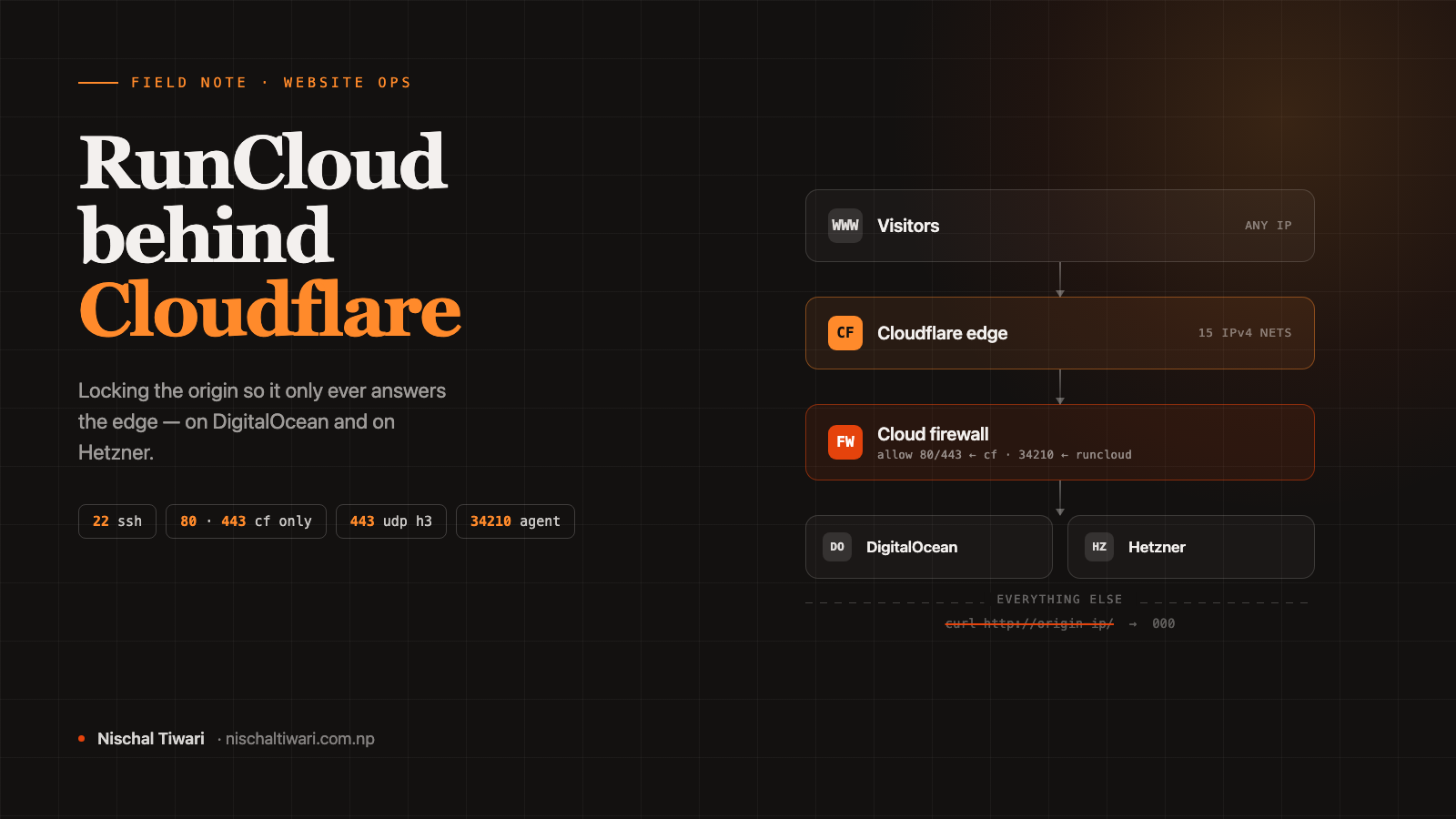
Putting a site behind Cloudflare hides your origin from casual traffic. It does not stop anyone who already knows the IP. Here is the firewall configuration I run on RunCloud origins — one on DigitalOcean, one on Hetzner — and the order of operations that keeps you from locking yourself out of your own server.
Every RunCloud server I manage sits behind Cloudflare. That part is easy — point the DNS at the origin, switch the cloud to orange, done. What takes longer to get right is the other half: making the origin refuse to talk to anyone except Cloudflare.
I set this up twice recently — a fresh DigitalOcean droplet in Sydney for a handful of Australian client sites, and the Hetzner box that has been running a high-traffic cricket platform for a couple of years. Same idea, two very different firewall stacks, and a couple of traps in each that are only obvious once you have fallen into them.
Why a proxied site still needs a locked origin
The comfortable assumption is that once Cloudflare is proxying, the origin is invisible. It is not. Origin IPs leak constantly and cheaply:
- Historical DNS records — the A record you had before you enabled the proxy is archived on half a dozen services.
- Certificate transparency logs, if you ever issued a cert directly on the origin.
- Outbound mail headers, which cheerfully stamp the sending server’s IP.
- Subdomains people forget to proxy:
staging.,mail.,cpanel.,direct. - Internet-wide scanners that fingerprint the exact TLS certificate you serve and index which IP served it.
If the origin answers on port 443 to anyone who asks, then every WAF rule, rate limit, bot rule and DDoS protection you configured at the edge becomes optional — an attacker simply addresses the origin directly and skips all of it. Worse, it fails silently. The dashboard still shows traffic being filtered. It just is not the traffic that matters.
The fix is unglamorous: a default-deny firewall in front of the origin that only accepts 80 and 443 from Cloudflare’s published IP ranges.
What RunCloud actually needs open
Before writing any rules, be precise about the ports. RunCloud’s manual installation needs four, and one of them is easy to forget in a way that will cost you an afternoon:
| Port | Protocol | Source | Why |
|---|---|---|---|
| 22 | TCP | Anywhere (or your IP) | SSH. Lose this and you lose the box. |
| 80 | TCP | Cloudflare only | HTTP, redirects, ACME http-01 if you use it. |
| 443 | TCP | Cloudflare only | HTTPS. |
| 443 | UDP | Cloudflare only | HTTP/3 (QUIC). Omit it and HTTP/3 silently degrades to TCP. |
| 34210 | TCP | RunCloud’s panel IPs | The RunCloud agent. Close it and the panel reports your server offline. |
Two notes on that table. First, 443/UDP is a separate rule — in most firewall UIs, picking the “HTTPS” preset locks the protocol to TCP, so you have to add a custom rule to get QUIC. Second, port 34210 is the one everybody forgets, because it does not exist in any generic “web server firewall” tutorial. It is specific to RunCloud, and it is how the panel talks to the agent on your box.
On SSH: I leave port 22 open to any IP rather than pinning it to a home address. I administer these servers from Nepal on a residential connection that changes IP, and a firewall rule that locks me out during an outage is a worse problem than an SSH port that is exposed but key-only. If you have a static IP or a bastion, pin it. If you do not, be honest about that instead of building a lockout for yourself.
DigitalOcean: one cloud firewall, and the additive trap
DigitalOcean’s Cloud Firewalls live at Networking → Firewalls and attach to droplets or to tags. They are default-deny on inbound: anything not explicitly allowed is dropped before it reaches the box.
The configuration is the five rules above. Outbound I leave at the DigitalOcean defaults — ICMP, all TCP, all UDP — because the server legitimately needs to reach package mirrors, an SMTP relay, and the RunCloud API.
Here is the trap, and it is a good one, because it produces a firewall that looks locked down and is not.
DigitalOcean firewall rules are additive. When two firewalls are attached to the same droplet, the droplet gets the union of their allow rules — never the intersection.
So the instinct — “I’ll keep my normal firewall and attach a second ‘Cloudflare-only’ firewall on top to restrict it” — does the exact opposite of what you want. The restrictive firewall cannot subtract anything. Your existing rule allowing 443 from all IPv4 stays in force, the panel shows two firewalls with reassuring names attached, and the origin is still wide open.
Edit the rules in place on a single firewall. Do not layer.
While doing exactly this I also found two orphaned firewalls in the account from an earlier project, attached to zero droplets — one named CF that turned out to allow 22, 80 and 443 from everywhere, and one named after a project that actually held the real Cloudflare-only ruleset. The names were precisely backwards. If you keep unattached firewalls around as templates, read the rules before you trust the label, and delete the ones you are not using — a plausibly-named firewall is exactly the thing someone attaches to the wrong box at 11pm.
[Screenshot: DigitalOcean firewall rules — inbound table showing 80/443 sourced from the Cloudflare ranges]
Hetzner: two firewalls, and knowing which one drops
Hetzner Cloud has an equivalent feature — Console → Firewalls — and it behaves the same way: default-deny inbound, attached to servers, enforced upstream of the machine.
The difference on my Hetzner box is that there are two firewall layers, because RunCloud installs and manages one on the host as well:
- Layer 1 — Hetzner Cloud Firewall. The real enforcing edge. Drops unmatched packets before they touch the NIC. This is the source of truth.
- Layer 2 — on-box
firewalld, default zoneruncloud, holding the same Cloudflare networks as rich rules plus thercsaservice and the agent port.
Any port change has to go in both, and people get this wrong in a specific direction: they fix the on-box firewall, see no improvement, and conclude the rule is wrong. It is not — the cloud firewall upstream is still dropping the packet, so the host never gets a say.
The two layers also fail differently, which is genuinely useful when diagnosing:
- A cloud firewall drops —
curlhangs until it times out (exit code 28). firewalldcan reject — you get connection refused immediately (exit code 7).
A timeout points upstream. An instant refusal points at the host. That one distinction has saved me a lot of guessing.
To inspect the host layer:
sudo firewall-cmd --zone=runcloud --list-rich-rules
sudo firewall-cmd --zone=runcloud --list-all
Note that this is firewalld, not ufw — on a RunCloud box built this way, ufw is absent entirely, and running ufw status to “check the firewall” tells you nothing.
[Screenshot: Hetzner Cloud firewall rules, inbound]
The order that keeps you from locking yourself out
Sequence matters more than the rules do. This is the order I use on a new server:
- Create the firewall with SSH open and 80/443 open to everyone. Attach it. Immediately open a second SSH session to confirm you are not locked out — keep the first one alive as your escape hatch.
- Install the RunCloud agent, confirm the panel shows the server connected.
- Tighten 34210 to RunCloud’s panel IPs. Safe at this point, because the agent is already talking and you can watch it stay connected.
- Create the web apps, point DNS at the origin, turn the Cloudflare proxy on.
- Issue certificates.
- Only now restrict 80, 443/TCP and 443/UDP to the Cloudflare ranges.
Step 6 last is the important one, and the reason is Let’s Encrypt.
RunCloud issues certificates over ACME http-01, which means Let’s Encrypt’s validation servers make a request to port 80 on your origin. If the domain is still grey-cloud (DNS-only) and you have already locked port 80 to Cloudflare, that validation arrives from a Let’s Encrypt IP, gets dropped, and issuance fails. The error surfaces as a vague SSL failure in the RunCloud panel with nothing pointing at the firewall, and you will spend a while blaming the wrong component.
Once the domain is orange-cloud, validation traffic reaches the origin through Cloudflare, arrives from a Cloudflare IP, and passes the rule. Same firewall, same cert request, different result — entirely because of what the DNS was doing at that moment.
Skip Let’s Encrypt: use a Cloudflare Origin CA certificate
If every site on the box is going to sit behind Cloudflare anyway, there is a better answer than fighting the ACME timing: do not use Let’s Encrypt on the origin at all.
Cloudflare will issue you an Origin CA certificate — SSL/TLS → Origin Server → Create Certificate — valid for up to 15 years. Paste the certificate and key into RunCloud’s custom SSL field for the web app, and set the zone’s SSL mode to Full (strict).
What this buys you:
- No dependency on port 80 being reachable from anywhere except Cloudflare — so you can lock down on day one instead of waiting.
- No 90-day renewal that a future firewall change can silently break. This is the real win: an ACME renewal failure does not page you, it just quietly stops working until the cert expires and the site goes down on a Sunday.
- One less moving part in a stack that already has enough.
The trade-off is that an Origin CA cert is only trusted by Cloudflare, not by browsers. If anything ever needs to hit the origin directly over HTTPS and validate the chain, this is not for you. Behind a proxy that you are deliberately making mandatory, it is exactly right.
The 34210 incident
Worth telling, because it is the failure mode of doing this well.
When I first locked the Hetzner origin down to Cloudflare, the change swept away the broad “allow 80/443 from anywhere” rules — and, along with them, the rule permitting port 34210. The websites were fine. Cloudflare kept serving, visitors noticed nothing. What broke was the RunCloud panel: the server showed as offline and no deployments would run.
The fix needed rules in both layers. Adding 34210 back to the on-box firewalld zone did nothing on its own, because the Hetzner cloud firewall was dropping the packet before it ever reached the host. The management plane had locked itself out while the data plane looked perfectly healthy.
The RunCloud agent connects from a small set of published panel IPs. Take the current list from RunCloud’s own documentation rather than from a blog post — mine or anyone else’s — since they can add regions:
52.53.52.35/32
54.177.105.133/32
54.176.244.231/32
52.52.156.27/32
54.215.67.177/32
54.193.194.57/32
If the panel goes offline right after you tighten this rule, widen 34210 back to all IPv4, confirm the agent reconnects, and then re-narrow. The symptom is unmistakable and the rollback takes ten seconds.
The other thing Cloudflare breaks: your security tooling
A side effect worth knowing about before it alarms you. Once the origin only ever sees Cloudflare, any tool on the box that reads the raw connecting address sees Cloudflare’s IPs and nothing else.
On my Hetzner server, RunCloud’s security analysis feature began reporting a permanent critical DDoS attack “from a single origin” — and the attacking addresses it named were Cloudflare’s own ranges. Its recommended remediation was to block those IPs at the edge and ban them with fail2ban. Following that advice would have blocked Cloudflare, which is to say every real visitor to the site. A self-inflicted outage, delivered as a security recommendation.
Two things to do about it. Make sure your nginx real-IP configuration is in place so logs record the true client IP from the CF-Connecting-IP header — that part was already correct on my box; the tool was simply reading the wrong layer. And do your actual attack monitoring at the edge, in Cloudflare’s Security Events, where the real client addresses live. Any origin-side tool that has not been taught about CF-Connecting-IP will keep producing confident nonsense.
Verifying it actually worked
Do not trust the panel. Test all four directions from a machine that is not the server.
Sites still load through Cloudflare:
curl -sS -o /dev/null -w '%{http_code}\n' https://example.com/The origin refuses direct traffic — both of these should hang and return 000, not a status code:
curl -sS -o /dev/null -w '%{http_code}\n' --max-time 12 \
  -H 'Host: example.com' http://ORIGIN_IP/

curl -sSk -o /dev/null -w '%{http_code}\n' --max-time 12 \
  --resolve example.com:443:ORIGIN_IP https://example.com/
SSH is still reachable and the agent port is not:
nc -z -w 8 ORIGIN_IP 22      # should succeed
nc -z -w 8 ORIGIN_IP 34210   # should fail from your machine
And confirm the domain is genuinely proxied — the A record should resolve to Cloudflare space, not to your origin:
dig +short A example.com @1.1.1.1Finally, reload the RunCloud panel and check the server is still connected. That is the check people skip, and it is the one that catches the 34210 mistake while you still remember what you changed.
Two false negatives to be aware of while testing. A curl request through Cloudflare may return 403 because of bot challenges even though real browsers are fine — verify in a browser before concluding something is broken. And server-side rendering or health checks that run on the box itself will keep working regardless, because loopback traffic never touches either firewall.
[Screenshot: verification output — sites 200 through Cloudflare, direct origin requests returning 000]
Keeping the Cloudflare list current
Cloudflare publishes its ranges at cloudflare.com/ips-v4 and cloudflare.com/ips-v6, and the list does change — rarely, but it changes. Pull it fresh when you build a firewall rather than copying from an old one:
curl -s https://www.cloudflare.com/ips-v4 | tr '\n' ',' | sed 's/,$//'That is currently 15 IPv4 networks. On IPv6: only add the v6 ranges if you actually publish AAAA records for the origin. No AAAA record means Cloudflare reaches you over IPv4 and the v6 rules are dead weight — extra rules that look meaningful and do nothing.
Set a calendar reminder to re-check the list once or twice a year. A new Cloudflare range you have not allowed presents as a fraction of visitors getting timeouts, which is a miserable thing to debug from the symptom end.
The checklist
- SSH open before anything else. Test a second session after attaching the firewall.
- 80, 443/TCP and 443/UDP — all three restricted to Cloudflare, or HTTP/3 quietly stops working.
- 34210 open to RunCloud’s panel IPs. Do not lose the management plane.
- Lock down after DNS is proxied and certificates are issued, never before.
- Prefer a Cloudflare Origin CA certificate over Let’s Encrypt when everything sits behind the proxy.
- On Hetzner, change both the cloud firewall and on-box
firewalld. On DigitalOcean, edit one firewall in place — never layer a second one and expect it to restrict. - Verify from outside: sites up through Cloudflare, direct origin requests timing out, SSH alive, panel connected.
- Ignore origin-side security tools that flag Cloudflare IPs as attackers. Monitor at the edge instead.
None of this is difficult. It is about fifteen minutes of work per server. But the failure modes are quiet — a firewall that reads as locked and is not, a certificate renewal that will fail in three months, a management port that closes while the websites stay up — and quiet failures are the ones that find you at the worst possible time.
Build it in the right order, verify it from outside the box, and write down which layer drops and which one rejects. Future you, debugging a timeout at midnight, will be grateful.